
Last updated:
Categories
Open Products › Categories.
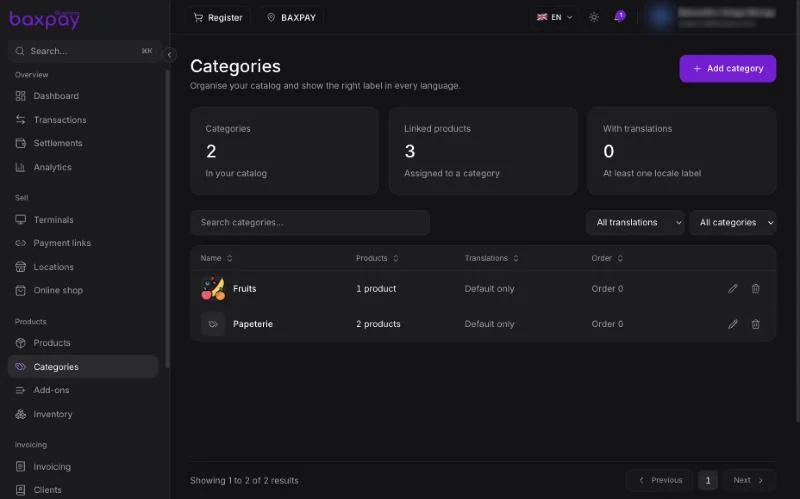
The page shows how many categories you have, how many products are linked to one, and how many categories have a translated label.
Create a category
- Select Add category.
- Enter the default name and, if you like, a description.
- Under Translations, add a label for each language your customers read. Leave one blank and the default name is shown in that language.
- Set the sort order to choose where it appears in the list.
Link products
Open a product in Products and pick its category. The category list then shows the number of products in each one.
Use the filters to find categories with translations, default only, with products or empty.
Add-ons
Open Products › Add-ons.
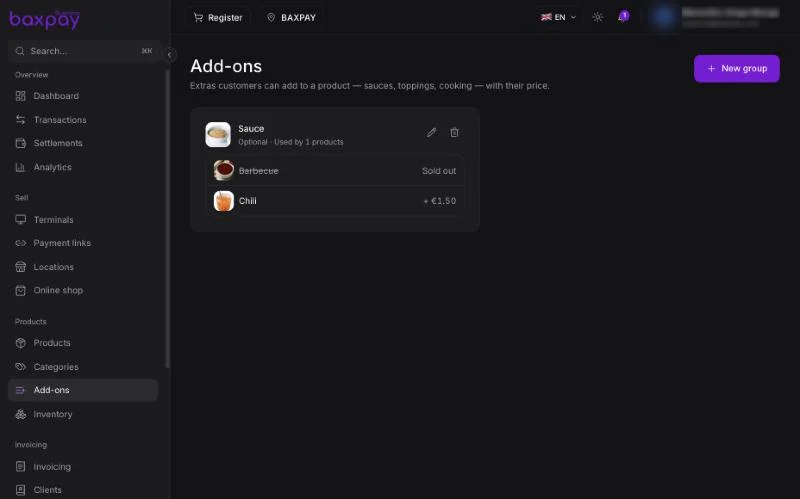
Add-ons live in groups. A group such as Sauce holds options such as Barbecue and Chili, each with its own price (or free).
Create a group
- Select New group and name it.
- Set how many options a customer can pick with At least and At most. At least 0 makes the group optional; at least 1 makes the choice required, for example a cooking choice.
- Add each option with its price, or leave the price empty for a free option.
- Attach the group to the products that offer it.
Sold out
Mark an option as sold out when you run out. It stays in the group, struck through, and customers cannot pick it until you turn it back on.
Where customers see them
- Register and POS terminals — the cashier picks the add-ons when adding the product.
- Online shop and payment links with products — the customer picks them before paying.
The add-on price is added to the line and shows on the receipt.
Next: Books →